
Why iPhone won't backup: causes and fixes explained
- Jun 24
- 9 min read

An iPhone won’t back up when one or more essential conditions fail: sufficient iCloud storage, a stable Wi-Fi connection, or a device free of software glitches. These three root causes account for the vast majority of iPhone backup failures, whether you use iCloud, iTunes, or Finder. Understanding which condition has broken down is the fastest way to fix the problem. This guide covers each cause in plain terms and gives you clear steps to get your backups working again.
Why won’t my iPhone back up? The three root causes
iPhone backup failure falls into three categories: network timeout, full storage, and device glitches. Knowing which category applies to your situation means you fix the right thing first, rather than working through every possible setting at random. The expert approach groups causes this way deliberately, because each category has its own set of targeted fixes.

iCloud is Apple’s default backup service, and it backs up automatically overnight when your iPhone is plugged in, locked, and connected to Wi-Fi. iTunes (on Windows and older Macs) and Finder (on macOS Catalina and later) handle local backups over USB. Each method has its own failure points, but storage and connectivity problems affect both.
How does storage affect iPhone backup failure?
Storage is the most common reason an iPhone backup stops working. iCloud’s free tier gives you 5 GB of space. Most iPhones hold far more data than that, so the free allowance fills up quickly and blocks any new backup from completing.
Your iPhone also needs free space on the device itself to process a backup. Insufficient device space causes backups to stall, restart in a loop, or fail entirely. Keeping at least 5–7% of your internal storage free prevents this.
How to check and manage your iCloud storage
Go to Settings > [Your Name] > iCloud > Manage Storage. You will see how much space each app is using and which old backups are taking up room. Deleting backups from old devices you no longer own is one of the quickest ways to free space.
On the device side, go to Settings > General > iPhone Storage. iOS will suggest ways to offload unused apps, which removes the app but keeps its data. You can also delete large video files or clear app caches manually.
Common storage errors and what they mean:
“Not enough iCloud storage”: Your iCloud plan is full. Delete old backups or upgrade your iCloud+ plan.
“iPhone storage almost full”: The device cannot process the backup. Delete files or offload apps before trying again.
“Backup failed” with no further detail: Often a combination of both storage issues. Check both iCloud and device storage before anything else.
“Last backup could not be completed”: Frequently triggered by a full iCloud account. Resolves once space is freed.
Pro Tip: If you have photos taking up most of your iCloud space, enable iCloud Photos with the “Optimise iPhone Storage” option. This keeps smaller versions on your device and full-resolution copies in iCloud, freeing significant space without losing anything.
How do network and connection problems stop backups completing?
A weak or unstable Wi-Fi connection is the second most common cause of backup problems. iCloud backups require Wi-Fi. Your iPhone connects to a network and begins the process, but it does not check connection quality before starting. A poor signal causes timeouts or extremely slow transfers that never finish.
Cellular data is not available for iCloud backups by default. Apple restricts this to prevent large data transfers eating into your mobile allowance. If you are away from a reliable Wi-Fi network, your backup simply will not run.
For computer backups over USB, the cable and port matter more than most people realise. A worn Lightning or USB-C cable causes disconnections mid-backup, which generates errors like “Device Disconnected” or a generic failure message.
Steps to troubleshoot network and connection issues
Move closer to your router and check that your Wi-Fi signal shows at least two bars.
Restart your router and wait 60 seconds before reconnecting your iPhone.
Forget the Wi-Fi network on your iPhone and reconnect from scratch.
For USB backups, try a different Apple-certified cable and a different port on your computer.
Temporarily disable any VPN running on your iPhone or computer. VPNs and firewalls frequently interrupt backup connections without showing a clear error.
If you use antivirus or security software on your computer, add iTunes or Finder to its exceptions list.
Check whether your router uses a firewall that blocks Apple’s backup servers. Switching to a mobile hotspot briefly can confirm whether your home network is the problem.
Pro Tip: Run iCloud backups on a 5 GHz Wi-Fi band rather than 2.4 GHz where your router supports it. The 5 GHz band is faster and less congested, which reduces the chance of a timeout on large backups.
What software glitches cause iPhone backups to fail?
Device-side software issues are the third major cause of backup problems. iOS restarts an incremental backup from scratch whenever files change mid-process. If you are actively using your phone during a backup, receiving messages, or running apps that write data, the backup keeps restarting and may never finish.
Outdated iOS versions also cause backup failures. Updating iOS and verifying your Apple ID settings resolves a surprising number of errors that appear unrelated to software at first glance. Signing out of your Apple ID and signing back in refreshes the authentication token that iCloud uses to authorise backups.
Corrupted backup files are another issue. If a previous backup was interrupted, iOS may try to continue from a broken state. Deleting the old backup from iCloud and starting fresh often resolves this.
How to reduce glitches during a backup
Restart your iPhone before starting a manual backup. This clears temporary processes that may interfere. Go to Settings > iCloud > iCloud Backup and tap Back Up Now, then set your phone down and leave it alone until the process finishes.
If backups consistently fail to complete, try disabling backup encryption temporarily. Go to Settings > General > Transfer or Reset iPhone > Encrypted Backup and turn it off, then attempt a fresh backup. Re-enable encryption afterwards.
Pro Tip: Enable Airplane Mode on your iPhone immediately after connecting to Wi-Fi for a manual backup. This stops incoming notifications and app activity from modifying files mid-backup, which prevents iOS from restarting the process.
iCloud backup vs computer backup: which fails more often?
Both methods have distinct failure points. The table below summarises the key differences.
Backup method | Common failure causes | Storage limit | Best for |
iCloud | Full storage, weak Wi-Fi, Apple ID issues | 5 GB free; paid plans up to 2 TB | Automatic, hands-off backups |
iTunes / Finder | USB cable faults, software conflicts, cloud sync folder issues | Limited by computer disk space | Full encrypted backups, privacy |
iMazing | Security software interference, cloud sync conflicts | Limited by computer disk space | Advanced users, granular control |
Computer backups have one specific failure that catches many people off guard. Storing backups in cloud-synced folders such as OneDrive or iCloud Drive corrupts them. These services lock files or alter their state while syncing, which breaks the backup file’s integrity. iTunes and Finder store backups in a specific local folder by default. Moving that folder to a cloud-synced location is a reliable way to cause failures.
Security software interference is equally overlooked. Antivirus, firewall, and VPN programs interrupt computer backups without always showing a clear error message. Disabling them temporarily during a backup is a straightforward test.
How to fix iPhone backup not working: step-by-step
Work through these steps in order. Most backup problems resolve within the first three.
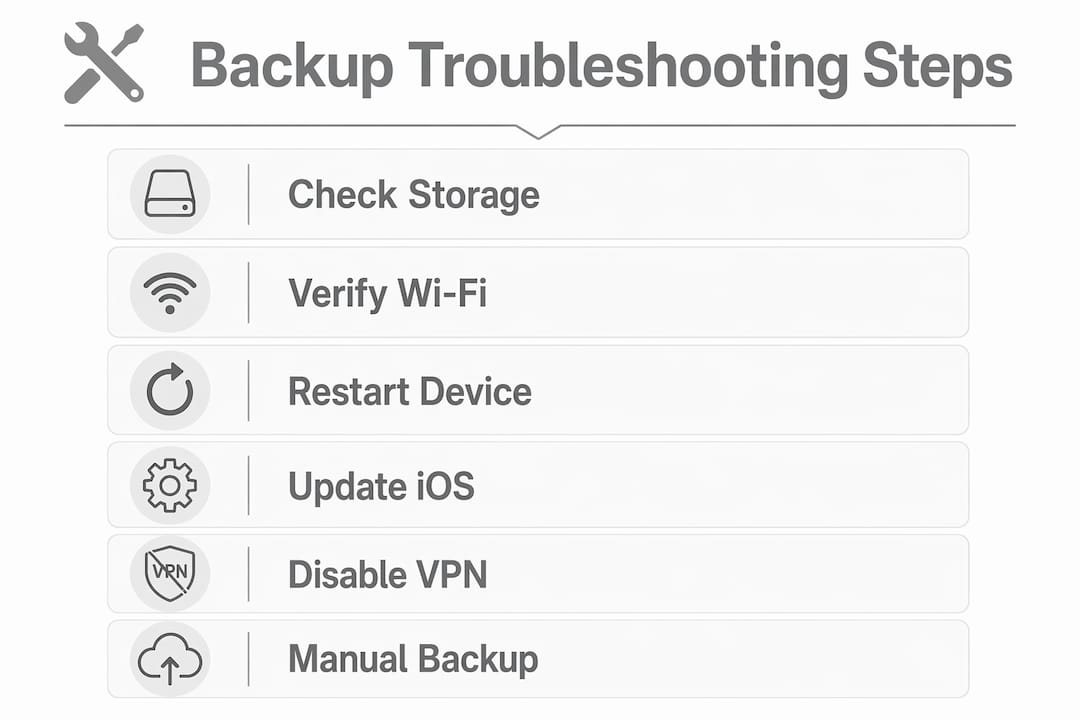
Check iCloud storage. Go to Settings > [Your Name] > iCloud > Manage Storage. Free up space if needed.
Check device storage. Go to Settings > General > iPhone Storage. Offload unused apps if storage is low.
Restart your iPhone. Rebooting the device clears temporary glitches and is one of the most effective first steps.
Update iOS. Go to Settings > General > Software Update. Install any available update.
Check your Wi-Fi connection. Move closer to the router or restart it.
Sign out of Apple ID and sign back in. Go to Settings > [Your Name] > Sign Out, then sign in again.
Delete the old backup and start fresh. Go to Settings > [Your Name] > iCloud > Manage Storage > Backups, delete your current device backup, and run a new one.
Try a computer backup as an alternative. Connect via USB to iTunes or Finder and back up locally.
If none of these steps work, the problem may be hardware-related. A faulty charging port, for example, causes USB backup failures that no software fix will resolve. At that point, a professional diagnostic is the right call. You can also check common iPhone repair issues for a broader view of what hardware faults look like.
Pro Tip: After fixing the root cause, run your first manual backup with your phone plugged in and the screen locked. Do not touch the device until the backup completes. Large first backups can take 30 minutes or more.
Key takeaways
iPhone backup failures almost always trace back to one of three fixable causes: full storage, a poor network connection, or a device-side software glitch.
Point | Details |
Storage is the top cause | Check both iCloud and device storage before anything else when a backup fails. |
Wi-Fi quality matters | A weak or unstable connection causes timeouts; move closer to your router or restart it. |
Software glitches are common | Restarting your iPhone and updating iOS resolves many backup errors quickly. |
Computer backups have unique risks | Never store iTunes or Finder backups in cloud-synced folders like OneDrive. |
Security software interferes | Disable VPNs, firewalls, and antivirus programs temporarily when backing up to a computer. |
What I have learned from years of seeing backup failures
The most common mistake I see is people assuming the iPhone itself is broken when a backup fails. The reality is that backup failures are more often caused by environmental factors than by a fault in the device. The phone is usually fine. The problem is the network, the storage account, or a piece of software running in the background.
Security software interference is the one cause that genuinely surprises people. A VPN or antivirus program running silently on a Windows PC can block every single backup attempt without producing a useful error message. The user tries again and again, assumes the iPhone is broken, and brings it in for repair. Disabling the security software for five minutes would have solved it.
My other observation is about patience. First-time backups, or backups after a major iOS update, can take a very long time. I have seen people cancel a backup after 20 minutes because they thought it had frozen, then repeat the process three times in a row. Each cancellation restarts the process from scratch. Leave it running, plug the phone in, lock the screen, and walk away.
If you are choosing between iCloud and a computer backup, think about your priorities. iCloud is convenient but costs money beyond 5 GB. A local backup via Finder or iTunes is free, private, and faster on a good USB connection. For most people, running both gives you the best protection.
— Joshua
When your iPhone backup problems need professional attention
Sometimes a backup failure points to a hardware fault rather than a settings issue. A damaged charging port, a failing logic board, or corrupted storage can all prevent backups from completing, regardless of how many software fixes you try.

Rapidrepairsldn offers expert diagnostics for iPhones at our Finchley repair centre. If you have worked through every software fix and your iPhone still will not back up, our team can identify whether a hardware fault is the cause. We handle everything from port repairs to full iPhone diagnostics and repairs, with fast turnaround times and transparent pricing. Bring your device in or get in touch to book a check.
FAQ
Why does my iPhone say “not enough iCloud storage”?
Your iCloud account has reached its storage limit. Delete old device backups or upgrade your iCloud+ plan to resolve this.
Can I back up my iPhone without Wi-Fi?
iCloud backups require Wi-Fi and cannot use cellular data by default. You can back up without Wi-Fi by connecting your iPhone to a computer via USB and using iTunes or Finder.
Why does my iPhone backup keep restarting?
iOS restarts a backup whenever files change during the process. Minimising device use and enabling Airplane Mode after connecting to Wi-Fi prevents this and reduces backup time.
Does a VPN stop iPhone backups from working?
A VPN running on your computer or iPhone can interrupt backup connections, sometimes without showing a clear error. Disable it temporarily and try the backup again.
How long should an iPhone backup take?
A first backup or a backup after a major iOS update can take 30 minutes or longer, depending on data size and connection speed. Subsequent backups are faster because iOS only backs up files that have changed.
Recommended
Comments