
What causes iPhone no service error: fixes explained
- Jun 19
- 8 min read

The iPhone ‘No Service’ error means your device has lost its connection to the cellular network, blocking calls, texts, and mobile data entirely. Understanding what causes iPhone no service error is the first step to fixing it quickly. Nine out of ten times, the problem is a software or configuration fault rather than a broken component. That is genuinely good news, because it means most users can restore service themselves without visiting a repair shop.
What are the main causes of the iPhone ‘No Service’ error?

The ‘No Service’ message appears when your iPhone cannot complete a digital handshake with a nearby cell tower. Several distinct faults can break that handshake, and knowing which one you are dealing with saves a lot of time.
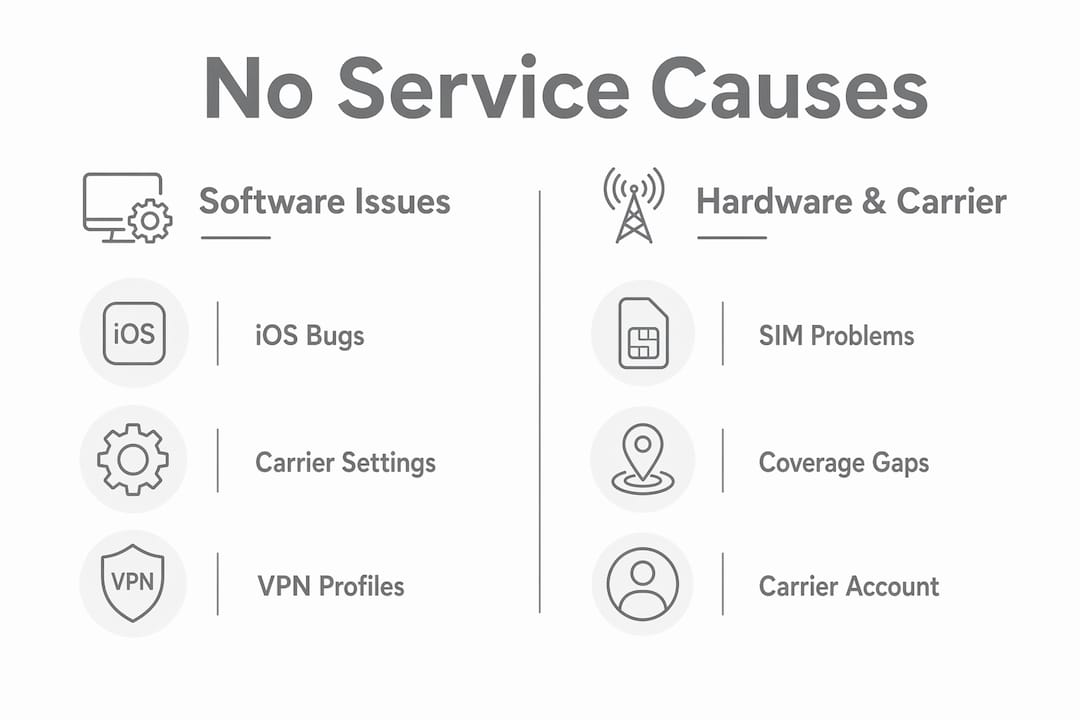
The most common causes are:
Airplane Mode left on. This is the most overlooked cause. Toggling Airplane Mode off and on forces the iPhone to search for a network again. Many users accidentally activate it in their pocket.
Poor or no coverage. Physical barriers such as thick walls, underground spaces, and rural distance from cell towers all reduce signal to zero. This is not a fault with your phone.
SIM card problems. A damaged or misinserted SIM disrupts authentication with the network. eSIM configuration errors produce the same result.
Carrier outages or account issues. Your carrier may be running maintenance, or your account may have been suspended due to an unpaid bill.
Outdated iOS or carrier settings. Software bugs introduced by a recent iOS update, or carrier settings that have not been refreshed, can break the connection between your iPhone and the network.
VPN or network profile conflicts. A VPN profile installed for work or a public Wi-Fi network can silently block cellular authentication without showing any obvious error.
Each of these causes has a specific fix. The sections below walk through them in order of simplicity.
How to check and fix basic settings causing ‘No Service’
Start with the simplest checks before moving to anything more involved. Most iPhone cellular network problems are resolved at this stage.
Toggle Airplane Mode. Open Control Centre, tap the aeroplane icon to turn it on, wait five seconds, then tap it again to turn it off. Your iPhone will immediately begin searching for a signal.
Restart your iPhone. A simple restart requests a fresh connection from your carrier and clears any temporary software fault causing the error. Hold the side button and a volume button, slide to power off, then turn it back on.
Check for a carrier settings update. Go to Settings > General > About. If an update is available, a prompt will appear automatically. Carrier settings updates improve network compatibility and often resolve signal issues that have appeared after a recent iOS change.
Verify your Cellular Data toggle. Go to Settings > Cellular and confirm the Cellular Data switch is turned on. It is easy to switch this off accidentally.
Reset network settings. If none of the above works, go to Settings > General > Transfer or Reset iPhone > Reset > Reset Network Settings. This removes corrupted configurations that prevent cellular service from working. Note that it will also clear saved Wi-Fi passwords, so have those to hand before you proceed.
Pro Tip: Always check for a carrier settings update after installing a new version of iOS. Apple and carriers release these updates in tandem, and skipping the carrier update is a common reason service drops after an iOS upgrade.
How SIM card and eSIM issues cause ‘No Service’ and how to resolve them
A SIM card is the physical key your iPhone uses to identify itself to your carrier’s network. When that key is damaged, dirty, or sitting at the wrong angle in its tray, the network simply cannot recognise your device.
Here is how to diagnose and address SIM-related faults:
Remove and reseat the SIM card. Use the SIM ejector tool (or a straightened paperclip) to open the tray. Take the SIM out, inspect it for visible scratches or damage, then reinsert it firmly and evenly.
Test the SIM in another device. If the SIM works in a different phone, the fault lies with your iPhone rather than the card itself. If it shows no service in the second device too, the SIM is the problem and your carrier can replace it free of charge or for a small fee.
Check your eSIM activation. Go to Settings > Cellular and confirm your eSIM plan is listed and set as active. After a mobile number port (MNP) or a SIM swap, there can be a lag in service activation while the network updates its records. Waiting up to 24 hours often resolves this without any further action.
Delete and re-add your eSIM profile. If the eSIM appears inactive, remove it under Settings > Cellular > [your plan] > Remove Cellular Plan, then follow your carrier’s instructions to re-add it. For detailed eSIM troubleshooting steps, the eSIM connectivity guide from Lumo covers the process clearly.
Pro Tip: If you have recently switched carriers or received a replacement SIM, give it a full restart after inserting the new card. The iPhone needs to reboot to register the new SIM credentials with the network properly.
Signs that you need professional help include a SIM tray that no longer closes flush, a SIM that is visibly cracked, or an iPhone that shows ‘No SIM’ rather than ‘No Service’. These point to hardware damage that requires a repair rather than a settings change.
When network coverage or carrier problems cause ‘No Service’ errors
Not every iPhone no signal issue is caused by the phone itself. Your location and your account status both play a significant role.
Coverage limitations. Basements, lifts, and rural areas with few cell towers are common blackspots. Moving to a window or stepping outside will confirm whether location is the cause.
Carrier outages. Networks run planned and unplanned maintenance. Check your carrier’s status page or their social media accounts for outage announcements before spending time on device troubleshooting.
Account suspension. Unpaid bills or carrier-imposed suspensions will cut service immediately. Log into your carrier’s app or website to check your account balance and plan status.
International roaming. Travelling abroad without an active roaming plan will trigger the ‘No Service’ display. Go to Settings > Cellular > Cellular Data Options and confirm that Data Roaming is enabled if your plan supports it.
The table below summarises the key differences between a coverage problem and a carrier account problem, since the fix for each is completely different.
Issue type | What you see | How to confirm | Fix |
Poor coverage | ‘No Service’ in specific locations | Service returns when you move | Move to an open area |
Carrier outage | ‘No Service’ across all locations | Carrier status page confirms fault | Wait for carrier to resolve |
Account suspension | ‘No Service’ everywhere, all the time | Log in to carrier account | Pay outstanding balance |
Roaming not enabled | ‘No Service’ only abroad | Check Cellular Data Options | Enable Data Roaming in Settings |
Why software glitches and iOS updates sometimes cause ‘No Service’
iOS updates are generally beneficial, but they occasionally introduce bugs that disrupt cellular communication. This is one of the more frustrating causes because the phone appears fully functional in every other way.
Common software-related causes and their fixes include:
iOS bugs after an update. Apple typically releases a point update within days of a major iOS version to address reported connectivity issues. Go to Settings > General > Software Update and install any available update.
VPN and network profile conflicts. VPN profiles can silently interfere with the cellular handshake, preventing your iPhone from authenticating with the network. Go to Settings > General > VPN & Device Management and temporarily disable any active VPN or remove profiles you do not recognise.
Corrupted network configuration. If a reset of network settings (covered in Section 3) has not worked, the next step is a full restore via iTunes or Finder on a Mac. Connect your iPhone, back it up first, then choose Restore. This reinstalls iOS cleanly and removes any corrupted system files.
Seek professional repair if software fixes fail. If you have worked through every software step and the iPhone still shows no service, the fault is likely hardware. Common culprits include a damaged antenna, a faulty SIM reader, or a motherboard-level issue. At that point, a professional diagnosis is the right call. You can find a broader overview of common iPhone repair issues to understand what a technician will typically check.
Keeping carrier settings updated alongside iOS versions is the single most effective way to prevent software-related ‘No Service’ errors from recurring.
Key takeaways
The iPhone ‘No Service’ error is caused by software faults, SIM issues, carrier problems, or coverage gaps in nine out of ten cases, and most can be fixed without replacing any hardware.
Point | Details |
Software causes dominate | Most ‘No Service’ errors are software or configuration faults, not broken hardware. |
Toggle Airplane Mode first | Switching Airplane Mode on and off is the fastest first fix to try. |
Update carrier settings | Always check for a carrier settings update after installing a new iOS version. |
SIM issues are diagnosable | Reseating or testing the SIM in another device quickly confirms whether the card is at fault. |
Account status matters | A suspended account or unpaid bill will cut service regardless of how healthy your phone is. |
What I have learned from years of iPhone connectivity faults
After seeing hundreds of iPhones come through the door at Rapidrepairsldn, the pattern is clear. The vast majority of ‘No Service’ cases that customers assume are hardware faults turn out to be a missed carrier settings update or a VPN profile that nobody remembers installing.
The VPN issue catches people out more than almost anything else. A user installs a free VPN app months earlier, forgets about it, and then after an iOS update the profile starts blocking cellular authentication. They bring the phone in convinced the antenna is broken. Disabling the VPN profile takes thirty seconds and the service returns immediately.
My honest advice is this: before you assume the worst, work through the software steps methodically. Restart the phone. Update carrier settings. Check for a VPN profile. Reset network settings. That sequence resolves the problem in the majority of cases I see. If you have done all of that and the phone still shows ‘No Service’, then yes, it is time to look at the hardware. A damaged SIM tray or a faulty antenna connector are real faults, but they are the exception rather than the rule.
The other thing worth saying is that preventative maintenance matters. Keeping iOS and carrier settings current is not just about new features. It is about maintaining the digital handshake between your phone and the network. Neglect those updates and you are creating the conditions for a ‘No Service’ error before any hardware has failed at all.
— Joshua
When DIY fixes are not enough: get expert help from Rapidrepairsldn

If you have worked through every step in this guide and your iPhone is still not connecting to the network, the fault is likely hardware. Rapidrepairsldn specialises in diagnosing and repairing iPhone connectivity problems, including SIM tray damage, antenna faults, and motherboard-level issues that no settings change can fix. The team at Rapidrepairsldn handles everything from a quick SIM reader replacement to complex board-level repairs, and every job is diagnosed before any work begins. Visit the iPhone repair page to book a diagnostic or get a quote. You can also browse top smartphone fixes for related issues while you are there.
FAQ
Why does my iPhone say ‘No Service’ after an iOS update?
iOS updates occasionally introduce software bugs that disrupt cellular communication. Installing the latest carrier settings update via Settings > General > About and then restarting the device resolves this in most cases.
Can a VPN cause the iPhone ‘No Service’ error?
Yes. VPN profiles can silently block the cellular authentication process, causing the iPhone to lose network connection. Disabling or removing the VPN profile under Settings > General > VPN & Device Management often restores service immediately.
How do I know if my SIM card is causing ‘No Service’?
Remove the SIM and test it in a different phone. If the second device also shows no service, the SIM card is faulty and your carrier can replace it. If the second device works fine, the fault is with your iPhone rather than the card.
Will an unpaid bill cause the ‘No Service’ error?
Yes. Carriers suspend service on accounts with overdue payments, which displays as ‘No Service’ on your iPhone. Log into your carrier’s account portal to check your balance and restore service by settling any outstanding amount.
What is the difference between ‘No Service’ and ‘Searching’?
‘No Service’ means the iPhone has found no network at all. ‘Searching’ means it is actively trying to connect to one. Both can have the same causes, but ‘Searching’ often resolves itself once you move to an area with better coverage.
Recommended
Comments