
iPhone dead pixel screen fix: your 2026 guide
- Jun 3
- 8 min read
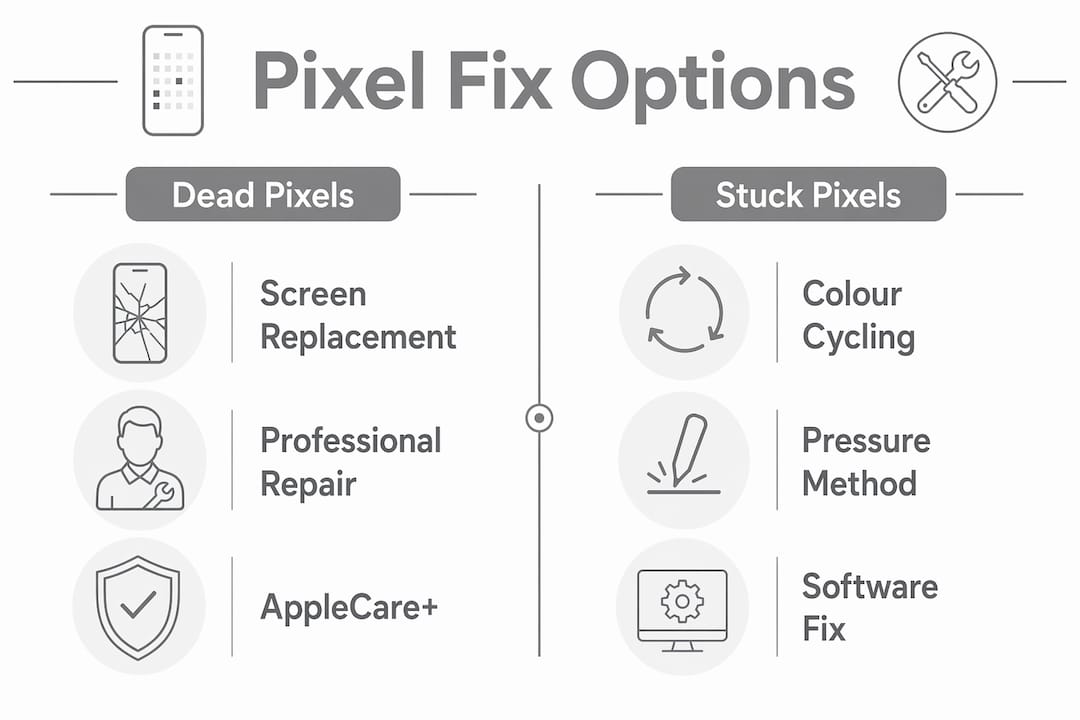
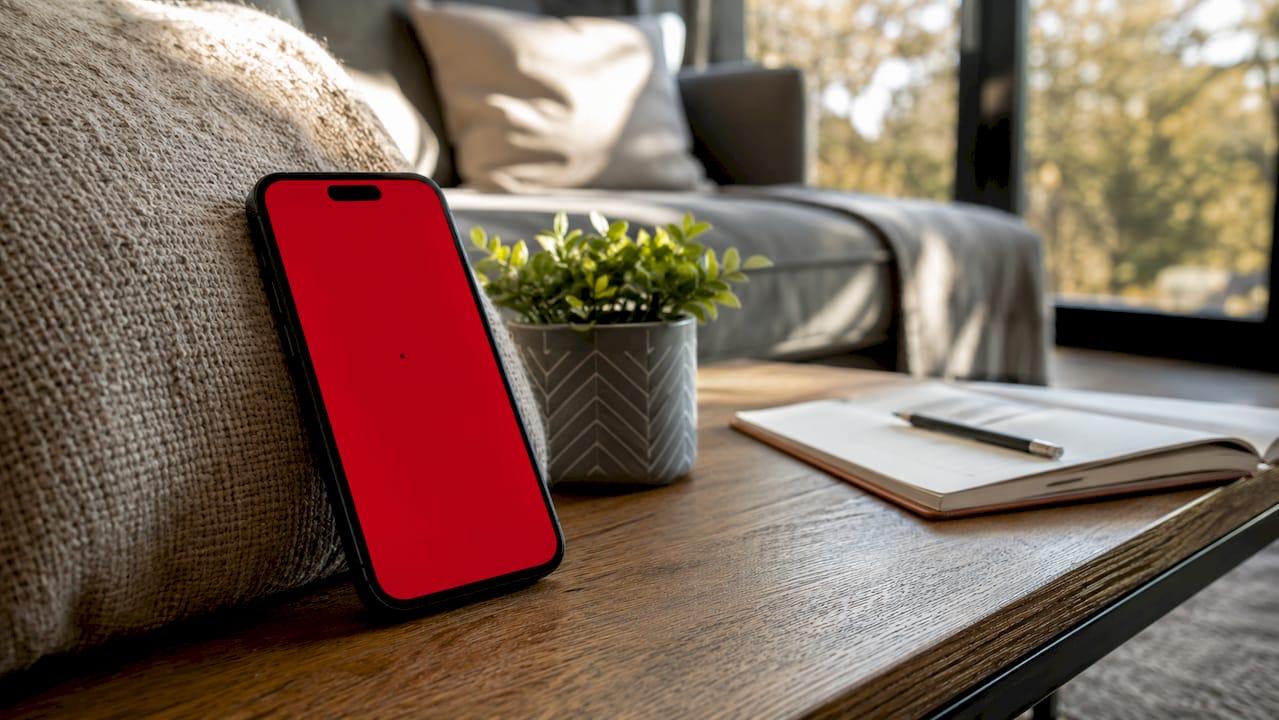
A dead pixel is a permanently unlit point on your iPhone screen that stays black regardless of what is displayed, and it differs critically from a stuck pixel, which remains fixable in many cases. Before you attempt any iphone dead pixel screen fix, you need to know which type you are dealing with. Stuck pixels are transistors that have frozen on a single colour, red, green, or blue, and they can often be revived with the right technique. Dead pixels, by contrast, have failed entirely and cannot be restored through software or pressure. Tools such as JScreenFix and free online checkers like mictestpro.com help you confirm the difference in minutes, which is the single most important step before spending time or money on any repair.
How to test for dead pixels on your iPhone screen
Accurate diagnosis is the foundation of any successful fix. Confirming stuck versus dead pixel type before repair attempts is essential because fix methods differ significantly between them. Follow these steps to test your screen properly.
Open a solid colour test. Visit mictestpro.com on your iPhone or use a dedicated dead pixel test app. Cycle through full-screen colours: black, white, red, green, and blue. Each colour reveals different defect types.
Check on a dark background first. On OLED iPhones, including the iPhone 15 Pro and iPhone 16 series, solid black backgrounds expose dead pixels most clearly because OLED panels switch off individual pixels to produce true black.
Zoom in on suspect areas. Use your iPhone’s built-in accessibility zoom (Settings > Accessibility > Zoom) or a screen magnifier app to inspect any dot that looks wrong. A stuck pixel will show colour; a dead pixel will remain black across every test colour.
Document what you find. Online pixel detection tools allow you to record screen defects, which is useful if you plan to claim a warranty repair or book a professional service.
Repeat the test in a dark room. Ambient light can mask faint pixel defects. Running the test with your screen brightness at maximum in a darkened room gives you the clearest result.
If the dot stays black through every colour, you have a dead pixel. If it shows any colour at all, it is stuck, and DIY fixes are worth trying.
Can you fix dead pixels on an iPhone yourself?
The honest answer is: not if they are truly dead. Dead pixels require screen replacement because the underlying transistor has failed permanently. Stuck pixels, however, respond well to two DIY methods.
Method 1: Rapid colour cycling software
Run a colour cycling tool such as JScreenFix or the repair function on mictestpro.com for 10 to 20 minutes. These tools flash colours at roughly 1.5-second intervals, which can jolt a stuck transistor back into normal operation. Leave the tool running on the affected area of your screen without touching the device.
Method 2: Gentle pressure massage
Power your iPhone screen off completely.
Wrap a soft, lint-free cloth around the tip of a blunt stylus or your finger.
Apply gentle, circular pressure directly over the stuck pixel for 10 to 30 seconds.
Power the screen back on and run a colour test immediately.
Repeat up to three times if the pixel has not cleared.
This technique works by physically encouraging the liquid crystal or transistor to reset. Do not press hard. Excessive force can crack the display or spread damage to neighbouring pixels.
Pro Tip: Run the colour cycling software first, then follow with the pressure method if needed. Combining both approaches in sequence gives you the best chance of clearing a stuck pixel without risking physical damage.

Success rates for these methods vary. Pixels that have been stuck for less than 48 hours respond far better than those that have been frozen for weeks. If neither method works after three attempts, the pixel is almost certainly dead and screen replacement is the only path forward.
Professional repair options and what they cost
When DIY methods fail, or when you have confirmed a dead pixel, professional iPhone screen repair is the correct next step. The cost depends heavily on whether you have AppleCare+.
AppleCare+ reduces screen repair to a flat fee of $29 per incident. Without it, Apple’s out-of-warranty screen repair pricing runs from $229 to $379 depending on the model. That is a significant difference, and it makes AppleCare+ worth calculating into your decision if your device is still eligible.
Here is a quick cost comparison:
Repair route | Approximate cost | Key consideration |
AppleCare+ screen repair | $29 per incident | Requires active AppleCare+ subscription |
Apple out-of-warranty repair | $229 to $379 | Varies by iPhone model |
Apple Authorised Service Provider | Similar to Apple pricing | Genuine parts, warranty preserved |
Non-authorised third-party repair | Lower upfront cost | Risks losing Face ID, True Tone, water resistance |
Non-authorised screen repairs risk disabling critical features including Face ID and True Tone, void your warranty, and reduce water resistance. This is not a minor inconvenience. Face ID failure on a non-authorised repair is a known outcome that Apple will not fix under warranty. Apple’s authorised repairs use genuine parts and restore all device features, backed by a 90-day service warranty.
You can find Apple Authorised Service Providers through Apple’s website. Booking in advance typically means same-day or next-day turnaround for screen replacements at most locations.
Should you replace the screen yourself?
DIY screen replacement is possible, and kits are available from suppliers such as iFixit for a range of iPhone models. It suits technically confident users with patience and the right tools. That said, DIY iPhone screen replacements are cost-effective mainly for older models, and they carry real risks including disabling True Tone and voiding your warranty.
If you decide to proceed, here is what the process involves:
Power off your iPhone completely and remove the SIM tray.
Use a pentalobe screwdriver to remove the two screws at the base of the device.
Apply a suction cup to the lower portion of the screen and gently lift to create a gap.
Insert a plastic opening pick and work around the edges to release the screen clips.
Lift the screen at an angle, keeping it connected via the flex cables. Do not pull it away from the body.
Disconnect the battery connector first, then the display cables.
Transfer any components (earpiece, front camera, home button on older models) to the new screen.
Reconnect cables, secure the screen, and replace the screws.
Factor | DIY replacement | Professional repair |
Cost | Lower upfront | Higher, but warranty preserved |
True Tone | Likely lost | Retained with authorised repair |
Warranty | Voided | Maintained |
Risk level | Moderate to high | Low |
Skill required | Intermediate | None (done for you) |
Pro Tip: If your iPhone is an OLED model such as the iPhone 12 or later, check our guide on LCD or OLED displays before buying a replacement screen. OLED panels require careful handling and are more expensive to source correctly.
Automated display replacement systems in Apple Stores perform True Tone calibration that is simply not available with third-party repairs. This is worth factoring into your decision, particularly on newer models where True Tone affects daily viewing comfort.
Preventing further damage and maintaining screen quality
Once you have addressed a dead or stuck pixel, protecting your screen from further damage is straightforward. Cracked or damaged screens should be covered with a quality tempered glass protector and a shock-absorbing case to prevent worsening defects or injury from loose glass.
Key steps to maintain your screen after any repair or fix attempt:
Back up your data before any repair attempt using iCloud or a Mac. If something goes wrong during a repair, you want your data safe.
Apply a tempered glass screen protector immediately after repair. This prevents new scratches and reduces the risk of impact damage spreading to repaired areas.
Keep iOS updated. Apple releases display calibration improvements in software updates that can affect how pixels behave, particularly on OLED screens.
Watch for spreading damage. A single dead pixel that multiplies into a cluster over days suggests a deeper display fault, possibly a failing backlight or damaged display connector. Seek professional diagnostics promptly.
Avoid extreme temperatures. Prolonged exposure to heat or cold degrades display components faster, particularly on OLED panels.
If you notice new pixel defects appearing after a repair, or if the screen develops pressure marks or discolouration, book a professional diagnostic rather than waiting. Early intervention prevents minor faults from becoming full display failures.
Key takeaways
The most effective approach to an iPhone dead pixel screen fix is to confirm whether the pixel is dead or stuck before attempting any repair, since only stuck pixels respond to DIY methods.
Point | Details |
Dead vs stuck pixels | Dead pixels require replacement; stuck pixels can often be fixed with software or gentle pressure. |
Diagnosis first | Use free tools like mictestpro.com and solid colour tests to confirm pixel type before spending money. |
DIY fix window | Colour cycling and pressure methods work best on stuck pixels frozen for less than 48 hours. |
AppleCare+ value | AppleCare+ cuts screen repair cost to $29 versus up to $379 without coverage. |
Authorised repairs protect features | Only authorised repairs preserve Face ID, True Tone, water resistance, and your warranty. |
What I have learned from seeing hundreds of pixel faults
From my time working with iPhone repairs at Rapidrepairsldn, the most common mistake I see is people attempting pressure fixes on dead pixels. They spend 20 minutes pressing on a pixel that has no chance of recovering because it is not stuck. It is gone. The diagnosis step is not optional. It saves time, prevents further damage, and stops people spending money on repair kits for a problem that only a screen replacement will solve.
I have also seen the consequences of non-authorised repairs far too often. A customer brings in an iPhone 14 Pro with a third-party screen fitted elsewhere. Face ID is dead. True Tone is gone. The repair cost them less upfront, but now they need a full authorised replacement anyway, at full price. The iPhone repair costs for putting that right are always higher than going authorised from the start.
My honest recommendation: if your iPhone is under AppleCare+, use it. The $29 fee is one of the best-value repair options in consumer electronics. If you are out of warranty and your phone is an older model, a quality DIY kit from iFixit is a reasonable option if you are comfortable with the process. For anything iPhone 12 or newer, the OLED display and Face ID complexity make professional repair the safer choice in almost every case.
— Joshua
Get your iPhone screen repaired by Rapidrepairsldn
If your iPhone has a dead pixel or a display fault that DIY methods have not resolved, Rapidrepairsldn offers professional iPhone screen repairs using genuine parts. The team at Rapidrepairsldn handles everything from stuck pixel diagnostics to full screen replacements, with same-day turnaround available for most iPhone models. Repairs preserve your Face ID, True Tone, and water resistance, and all work comes with a service warranty. Whether you need a quick assessment or a full display repair booking, Rapidrepairsldn makes the process straightforward and stress-free. Get in touch today to discuss your screen issue and receive a clear, honest quote.
FAQ
What is the difference between a dead pixel and a stuck pixel?
A dead pixel is permanently black and cannot be repaired through software or pressure. A stuck pixel displays a fixed colour and can often be fixed using colour cycling tools or gentle pressure techniques.
Can I fix dead pixels on my iPhone at home?
Dead pixels cannot be fixed at home because the transistor has failed permanently. Stuck pixels, however, respond to DIY methods such as running JScreenFix or mictestpro.com for 10 to 20 minutes.
How much does iPhone screen repair cost in 2026?
With AppleCare+, screen repair costs $29 per incident. Without coverage, Apple’s out-of-warranty pricing ranges from $229 to $379 depending on the iPhone model.
Will a non-authorised repair fix my dead pixel problem?
A non-authorised repair may replace the screen, but it risks disabling Face ID and True Tone, reduces water resistance, and voids your Apple warranty. Authorised repairs are the safer option for preserving all device features.
How do I test my iPhone for dead pixels?
Visit mictestpro.com and run a full-screen colour cycle test covering black, white, red, green, and blue. Use your iPhone’s accessibility zoom to inspect any suspect areas closely, and test in a dark room with maximum brightness for the clearest result.
Recommended
Comments