
Why iphone freezes randomly: causes and fixes
- Jun 28
- 9 min read

Random iPhone freezing is defined as the device becoming suddenly unresponsive, with the screen locked and touch input ignored, most commonly caused by software glitches rather than hardware failure. Understanding why iphone freezes randomly saves you time, money, and unnecessary panic. Most random freezes are software-caused, meaning app bugs, memory exhaustion, or corrupted temporary files are the culprits in the vast majority of cases. A force restart resolves most freezes in under 30 seconds without deleting any data. That single fact changes how you should approach every freeze from the moment it happens.
What are the common causes of iPhone freezing randomly?
iPhone freezing issues fall into several clear categories. Knowing which one applies to your situation points you straight to the right fix.
App crashes and bugs. A single poorly coded app can cause the entire user interface to become unresponsive. This is especially common after an app update that introduced a new bug, or when an app tries to use more memory than iOS allows.
Insufficient free storage. When your iPhone runs low on space, iOS cannot complete basic background tasks. Full storage causes system thrashing, where the operating system repeatedly kills and restarts background processes, producing erratic freezes. Apple recommends keeping at least 1GB to 5GB free at all times.
Software glitches and stalled updates. A partially downloaded iOS update or corrupted temporary files can interrupt normal system operation. The device may appear frozen when it is actually stuck mid-process.
Accidental Guided Access activation. Guided Access locks the phone inside a single app and disables normal swipe gestures. Users frequently mistake this for a system freeze. It is triggered by triple-pressing the side or Home button, often by accident inside a pocket.
Overheating. Running intensive tasks such as gaming, video recording, or navigation for extended periods raises the processor temperature. iOS responds by slowing the processor down to protect the hardware, which can look and feel exactly like a freeze.
Low Power Mode and battery issues. Low Power Mode limits refresh rates and reduces background activity. On Pro models with high-refresh-rate displays, this can cause noticeably sluggish animations that users interpret as freezing. A critically low or degraded battery can also cause sudden unresponsiveness.
Each of these causes has a specific fix. The good news is that none of them require a trip to a repair shop as a first step.

How can you fix a frozen iPhone quickly and safely?
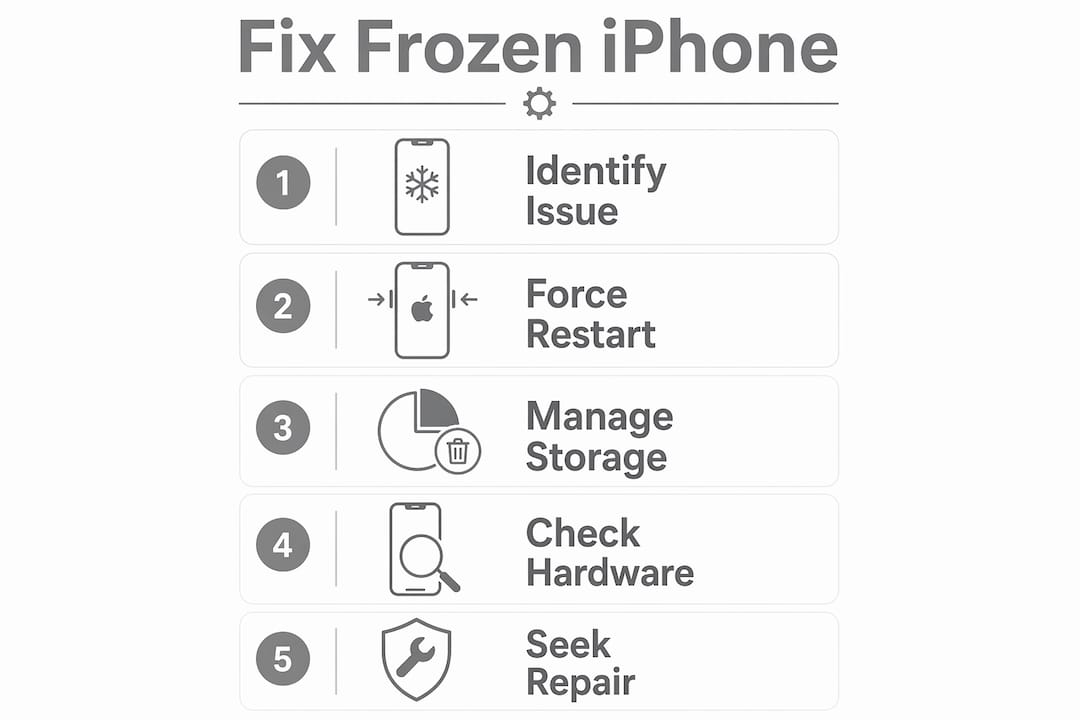
Work through these steps from least to most involved. Most users resolve the problem within the first two or three steps.
Perform a force restart. This is the single most effective first action. Force restart sequences vary by model, and using the wrong sequence is a common reason people give up too early. For iPhone 8 and later: press and quickly release Volume Up, press and quickly release Volume Down, then press and hold the Side button until the Apple logo appears. For iPhone 7: hold Volume Down and Sleep/Wake together. For iPhone 6s and earlier: hold Home and Sleep/Wake together. The process takes under 30 seconds and carries no risk of data loss.
Close or update the problematic app. If the freeze happens only inside one specific app, force-close it by swiping up from the bottom of the screen. Then check the App Store for a pending update. Developers regularly release patches that fix freeze-causing bugs.
Free up storage space. Go to Settings, then General, then iPhone Storage. If you have less than 1GB free, your device will freeze repeatedly. Delete large apps you no longer use, clear photo duplicates, and remove old downloaded videos.
Check for Guided Access. If your screen is stuck inside one app and swipes do nothing, triple-press the side button. If Guided Access is active, you will see an option to end it. Enter your passcode and normal operation resumes immediately.
Cool the device down. Remove any thick case and place the iPhone on a flat, cool surface for 10–20 minutes. Avoid direct sunlight or leaving it on a car dashboard. Once the temperature drops, performance typically returns to normal.
Update iOS. Software updates patch freeze-causing bugs and improve overall system stability. Go to Settings, then General, then Software Update. Install any available update before assuming the problem is hardware-related.
Reset all settings as a last software resort. Go to Settings, then General, then Transfer or Reset iPhone, then Reset All Settings. This clears network settings, display preferences, and privacy settings without deleting your photos or apps. If freezing persists after this, a full restore via Recovery Mode or DFU mode is the next step, best done with a backup in place.
Pro Tip: Always check which iPhone model you have before attempting a force restart. Using the wrong button combination is the most common reason the fix appears not to work.
What role does storage management play in preventing iPhone freezes?
Storage is one of the most overlooked causes of recurring iPhone freezing issues. When free space drops too low, iOS cannot create the temporary files it needs to run apps smoothly. System storage thrashing degrades performance gradually, meaning your phone will not freeze once and stop. It will freeze repeatedly, with each incident getting worse over time.
Apple’s guidance is clear: keep at least 1GB free as an absolute minimum, and 5GB free for a consistently smooth experience. Staying above that threshold prevents the operating system from competing with itself for space.
Here are practical ways to reclaim storage:
Offload unused apps. Go to Settings, then General, then iPhone Storage. Tap any app and select “Offload App.” This removes the app but keeps its data, so you can reinstall it later without losing progress.
Clear app caches. Some apps, particularly streaming and social media apps, store large amounts of cached data. Deleting and reinstalling these apps clears the cache entirely.
Delete old messages and attachments. Go to Settings, then Messages, and set “Keep Messages” to 30 days or 1 year instead of Forever. This automatically removes old conversations and their media files.
Review and remove large files. In iPhone Storage, scroll down to see a list of apps sorted by size. Video files and downloaded podcasts are common culprits. Remove anything you no longer need.
The table below shows the relationship between free storage and device behaviour.
Free storage available | Typical device behaviour |
5GB or more | Smooth performance, no storage-related freezes |
1GB–5GB | Occasional slowdowns, minor app pauses |
Under 1GB | Frequent freezes, app crashes, slow launches |
Near zero | Persistent freezing, inability to open apps |
Keeping an eye on your storage once a month takes less than two minutes. It is one of the most effective ways to prevent phone glitches before they start.
How do environmental and hardware factors cause iPhone freezing?
Software fixes solve most freezes, but environmental and hardware conditions play a real role too. Recognising these factors stops you from chasing software solutions when the actual cause is physical.
Overheating and thermal throttling. Removing the case and cooling for 10–20 minutes often resolves freezes caused by heat. Thick cases, particularly those with multiple layers, trap heat against the back of the device. The processor slows itself down automatically when it gets too hot, and at extreme temperatures the screen can become completely unresponsive. If your iPhone feels hot to the touch before it freezes, heat is the likely cause.
MagSafe and thick cases. Cases that obstruct the back of the device reduce its ability to dissipate heat. During wireless charging or intensive use, this compounds the problem. Switching to a thinner case or removing it during long gaming or navigation sessions reduces the risk.
Battery condition. A degraded battery cannot deliver consistent power to the processor. This causes sudden slowdowns and, in some cases, complete unresponsiveness. Check your battery health by going to Settings, then Battery, then Battery Health and Charging. A health reading below 80% is a strong indicator that the battery needs replacing.
Hardware faults. Rare but possible causes include a faulty display connector, damaged internal components, or water ingress affecting the logic board. These are distinct from software freezes because they occur consistently, often at the same point in a task, and do not respond to force restarts or software fixes.
Pro Tip: If your iPhone freezes only during charging, or only when the screen brightness is at maximum, suspect a hardware issue rather than a software one. These patterns point to power delivery or display problems that software cannot fix.
Signs that point to hardware rather than software include freezing that occurs regardless of which app is open, a screen that flickers before freezing, or a device that shows signs it needs repair such as physical damage or persistent black screens. Understanding what causes an iPhone black screen can also help you distinguish between a freeze and a deeper display fault.
Key takeaways
The most effective way to fix iPhone freezing issues is to start with a model-specific force restart, then address storage, software updates, and environmental factors before assuming any hardware fault.
Point | Details |
Force restart first | A model-specific force restart resolves most freezes in under 30 seconds with no data loss. |
Keep storage above 1GB | Dropping below 1GB of free space causes system thrashing and recurring freezes. |
Check for Guided Access | Accidental Guided Access activation mimics a freeze; triple-press the side button to check. |
Update iOS regularly | Software updates patch known bugs that directly cause random freezing and sluggishness. |
Hardware faults need professional help | Freezes that persist after all software fixes may indicate battery or component issues. |
What I have learned from diagnosing frozen iPhones
After seeing hundreds of iPhones come through the door at Rapidrepairsldn, the pattern is consistent: the vast majority of freezes are software problems wearing a hardware costume. Customers arrive convinced their phone is broken beyond repair, and a force restart or a storage clear fixes it in minutes.
The mistake I see most often is skipping straight to a factory reset. People panic, wipe everything, and then discover the problem was a single rogue app or a storage issue that could have been fixed in 30 seconds. A factory reset is a last resort, not a first response.
What I would tell anyone dealing with a frozen iPhone is this: observe the pattern before you act. Does it freeze only in one app? That is an app problem. Does it freeze when the phone is warm? That is a heat problem. Does it freeze more often as the month goes on and your storage fills up? That is a storage problem. Patterns are diagnostic tools, and they cost nothing to notice.
The one area where I see people under-react is battery health. A battery below 80% health does not just affect how long your phone lasts. It affects how consistently the processor receives power, and that inconsistency shows up as freezing. If you have tried every software fix and the problem persists, check your battery health before assuming anything more serious.
Keep your software updated, your storage clear, and your phone cool. Those three habits prevent the overwhelming majority of freezing issues before they start.
— Joshua
When to get professional help for iPhone freezing
If you have worked through every software fix and your iPhone still freezes regularly, the problem is likely hardware-related. At that point, professional diagnostics are the right next step.

Rapidrepairsldn specialises in iPhone repairs including battery replacements, display faults, and logic board diagnostics. A degraded battery is one of the most common hardware causes of persistent freezing, and it is a straightforward fix in the right hands. If your device freezes consistently, shows physical damage, or does not respond to any software troubleshooting, the team at Rapidrepairsldn can identify the exact cause quickly. Visit the iPhone repair page to book a diagnostic or find out more about the services available. Fast, reliable repairs without unnecessary upselling.
FAQ
Why does my iPhone freeze randomly for no reason?
Most random freezes are caused by software issues such as app bugs, low storage, or corrupted temporary files rather than hardware failure. A force restart is the recommended first step and resolves most cases in under 30 seconds.
How do I unfreeze my iPhone without losing data?
Perform a force restart using the correct button sequence for your model. This resets the software without deleting any photos, messages, or apps.
How much free storage should I keep on my iPhone?
Keep at least 1GB to 5GB free to prevent storage-related freezing. Below 1GB, iOS begins thrashing background processes, which causes repeated freezes and app crashes.
Can overheating cause my iPhone to freeze?
Yes. Excessive heat causes the processor to slow down automatically to protect the hardware, which can make the screen completely unresponsive. Removing the case and resting the device for 10–20 minutes in a cool place typically resolves it.
When should I take my iPhone to a repair shop?
Take your iPhone for professional diagnostics if freezing persists after a force restart, iOS update, storage clear, and reset of all settings. Consistent freezing that follows a pattern regardless of which app is open often points to a battery or hardware fault.
Recommended
Comments