
Why iPhone charging slows down and how to fix it
- Aug 20
- 7 min read
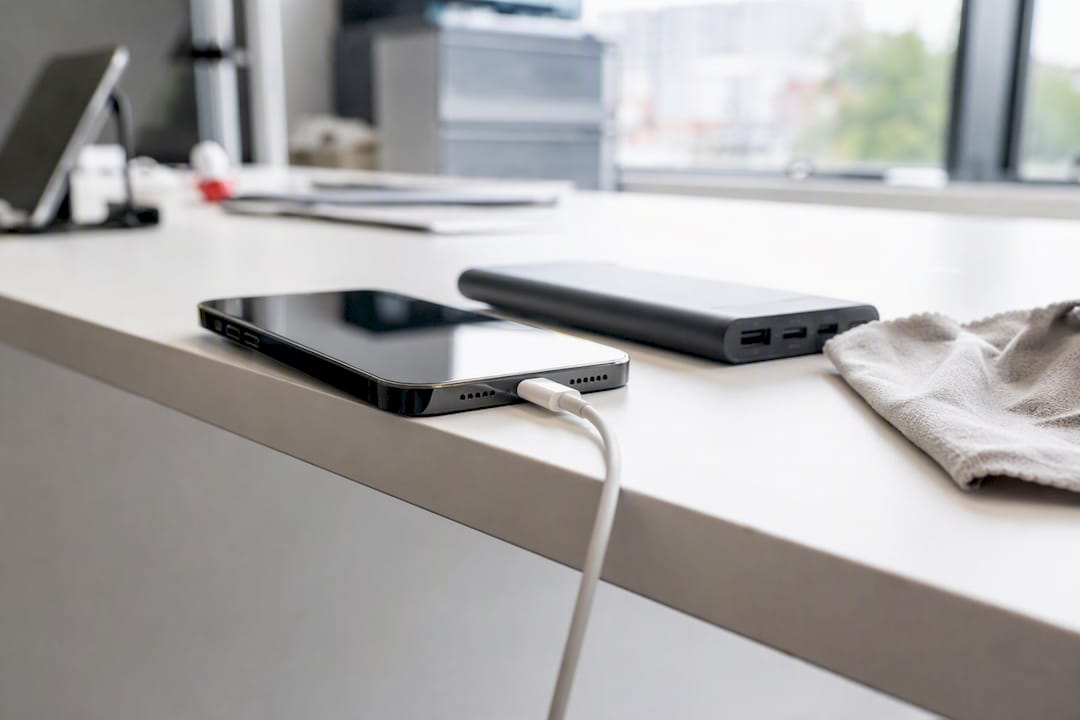
Your iPhone is charging slowly because of one of four things: software power management (usually Optimized Battery Charging), an underpowered or uncertified charger and cable, thermal throttling from heat or heavy background use, or genuine battery and port wear. The Optimized Battery Charging feature is the most common culprit, followed by cheap accessories that can’t deliver a real 20W. Your immediate move: plug into a certified 20W+ USB‑C adapter with a proper cable, then watch the percentage for 10 to 30 minutes to see what changes.
Key Takeaways
Slow iPhone charging is fixed by ruling out software throttling and weak accessories before assuming the battery or port has failed.
Point | Details |
Start with the charger | Swap to a certified 20W+ adapter and cable before suspecting the battery. |
Check Optimized Battery Charging | This iOS feature intentionally pauses near 80%, mimicking a fault that isn’t there. |
Cool the phone down | Remove the case and stop heavy background tasks to reverse thermal throttling. |
Run the 10 to 30 minute test | Compare percentage gain across chargers and cables before deciding it’s hardware. |
Book a diagnosis when tests fail | Rapid Repairs London checks the port, battery, and charging circuit with proper equipment. |
Table of Contents
Why iPhone charging slows down: the main causes
Slow charging almost always comes down to one of six things, and most of them you can rule out in a few minutes without opening a single tool.
Optimized Battery Charging — iOS deliberately holds charge near 80% and finishes based on your routine.
Low‑wattage charger or cable — old 5W adapters and worn Lightning cables cap your charge rate hard.
Background tasks and high CPU load — GPS, gaming, or video recording while plugged in competes with charging for power.
Thermal throttling — the phone reduces charge current when it gets too warm, protecting the battery from damage.
Battery age and degradation — cells lose capacity to hold and accept charge over time.
Damaged charging port — debris, corrosion, or bent pins interrupt the connection.
Wireless charging limits — MagSafe and Qi2 pads charge slower than a good wired connection, and older Qi pads slower still.
Thermal throttling deserves a proper explanation because it confuses so many people. When your iPhone’s internal temperature climbs (from a hot car, direct sun, or heavy processing while plugged in), it deliberately reduces the current flowing into the battery. This is not a fault. It’s the same protective logic every lithium battery needs, and heavy background activity is a well documented trigger for it.
Pro Tip: If your phone feels warm to the touch while charging, that alone can shave real minutes off a full charge. Cool it down before troubleshooting anything else.
The other big one is Optimized Battery Charging, which learns your daily routine and intentionally pauses near 80% overnight, finishing just before you usually unplug. It’s a common reason people think their charger has died when nothing is actually wrong.
Immediate fixes you can try right now
Work through these in order. Most people find the answer within the first three steps.
Switch to a 20W+ USB‑C power adapter and an MFi‑certified cable. This single change fixes more slow charging complaints than anything else, since a genuine 20W adapter with a proper cable is what most fast charging profiles need.
Plug into a wall socket, not a laptop or USB hub. Computer USB ports often deliver a fraction of the power a wall adapter provides.
Remove the case. Cases trap heat, and heat is what triggers throttling.
Turn on Airplane Mode or power the phone off entirely. Cutting background radio and app activity frees up power for the battery itself.
Close any app doing heavy work. Video recording, navigation, and gaming all pull current away from charging.
Avoid charging in direct sun or inside a hot car. Ambient heat compounds whatever heat the phone is already generating.
Compare wired versus wireless. If a MagSafe or Qi2 pad seems slow, try a wired connection and see if the gap is dramatic.
For wireless charging, expect MagSafe or Qi2 pads to peak lower than a wired 20W connection, and treat older Qi‑only pads as noticeably slower again.
Pro Tip: A warm phone in a warm case on a warm surface is fighting three sources of heat at once. Strip the case off and set the phone on something cool and hard, like a worktop, and you’ll often see the charge rate climb within minutes.
How to test and reproduce slow charging
Run this sequence before deciding whether the problem is your accessories, your settings, or the phone itself.
Note your starting battery percentage.
Plug in with a known 20W certified adapter and cable.
Check the percentage gained after 10 minutes, then again at 30 minutes.
Repeat the same test with the phone powered off completely.
Repeat again in Airplane Mode with the screen off.
Swap in a different cable and adapter combination.
If you have a wireless pad, test that too and compare the gain.
If you end up booking a repair, bring this evidence with you:
A screenshot of Settings → Battery → Battery Health & Charging.
Your noted percentage gain for each test interval.
Which adapter and cable combinations you tried.
Here’s how to read your results. A near‑normal gain with a certified charger but a poor gain with your usual setup points to a faulty cable or adapter. No improvement at all, across multiple adapters and cables, points towards a battery or charging port problem that needs a technician’s diagnostic tools.
Battery Health and Optimized Battery Charging explained
Open Settings, then Battery, then Battery Health & Charging. This screen shows your Maximum Capacity, a percentage comparing your battery’s current capacity against when it was new, along with any messages about degradation.
Optimized Battery Charging sits on the same screen. This is the feature most often mistaken for a fault, because the phone genuinely does slow down, on purpose, to protect long‑term battery health.
A few situations point towards replacement rather than settings:
The screen reports your battery’s health is significantly degraded.
Charging stays sluggish even with a certified adapter and cable across repeated tests.
The phone fails to hold a reasonable charge shortly after reaching 100%.
Read more in our guide to what iPhone Battery Health percentages actually mean.
When it’s a hardware fault, not a setting
Some symptoms point squarely at a physical problem rather than anything you can fix from Settings.
Charging that starts and stops intermittently as you move the cable.
Visible debris, lint, or corrosion inside the port.
Bent or misaligned pins.
Consistently very slow charging even with a certified adapter and cable that work fine on another iPhone.
The phone getting excessively hot the moment it’s plugged in, before any app is even open.
A reputable repair shop like Rapid Repairs London will check the charging port for debris or damage, test the battery’s actual capacity and current draw against factory specification, and run component‑level diagnostics on the charging circuit itself. Bring your test results and Battery Health screenshot; it saves time and helps the technician confirm whether the fault is the port, the battery, or something further into the board.
Pro Tip: If your phone charges normally the moment you switch to a different cable and adapter, hold off on booking a battery replacement. That result usually points to the accessory, not the phone.
Which accessories actually help and which to avoid
Stick to MFi‑certified Lightning or USB‑C cables and a genuine 20W+ certified wall adapter, whether that’s an official Apple adapter or a reputable third‑party alternative. For wireless, a MagSafe or Qi2 pad gives you the best available speed on supported models.
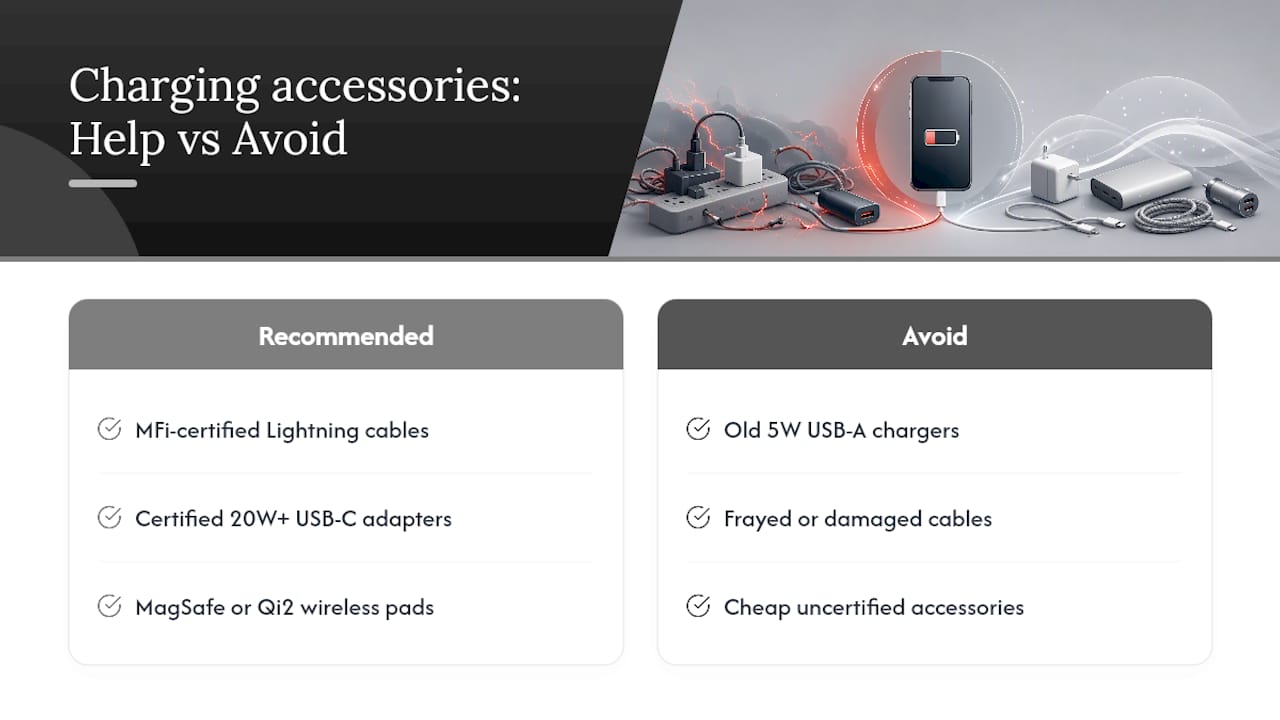
Avoid old 5W USB‑A chargers, cables with visible fraying or damage, and unbranded “certified” accessories bought cheaply online. Beyond slow charging, uncertified accessories can trigger iOS’s own Slow Charger warning and, in worse cases, overheat.
What to expect: charging times and repair costs
With a genuine 20W+ adapter and certified cable, many compatible iPhones reach around 50% in about 30 minutes, with a full charge often following within the hour under good conditions. Wireless MagSafe or Qi2 charging peaks lower than that wired rate, and older Qi pads slower again. For repair costs, a charging port clean or repair and a battery replacement each sit within predictable ranges that a trusted local shop can quote once they’ve seen the diagnostic results.
A repair shop’s view on slow charging complaints
Most slow charging jobs that come through our door turn out to be the charger, not the phone. We check the accessory first with a known‑good adapter and cable before we ever open a case, because that one step rules out half the wrong diagnoses we’d otherwise make.
Need a proper diagnosis? Here’s what Rapid Repairs London checks
If you’ve run the tests above and the charging problem hasn’t budged, that’s exactly the evidence worth bringing in rather than more guesswork at home. Rapid Repairs London runs component‑level diagnostics on the charging circuit, cleans or replaces damaged charging ports, and tests battery capacity against factory specification, so you get a straight answer instead of a guess.

Bring your Battery Health screenshot and the percentage gains you recorded during testing. It lets our technicians confirm in minutes whether you’re looking at a port clean, a battery swap, or something else entirely, using genuine parts and a proper diagnostic bench rather than trial and error. Head to our iPhone repair page to check availability and book a diagnostic slot, or browse our iPad services if a tablet in the house is showing the same symptoms.
Sources
Recommended
Comments