
iPhone Always On Display explained: your 2026 guide

Always On Display (AOD) is defined as a dimmed lock screen that keeps your time, widgets, and notifications visible without you needing to wake your iPhone. Apple introduced this feature with the iPhone 14 Pro, and it remains exclusive to Pro models due to specific hardware requirements. The core benefit is simple: you get glanceable information at any moment without touching your phone. If you have ever wondered exactly how the iPhone always on display explained works in practice, this guide covers everything from compatible models to battery impact and the best settings for your needs.
Which iPhone models support Always On Display?
Always On Display is exclusive to iPhone Pro models, starting from the iPhone 14 Pro through to the iPhone 17 Pro Max. Standard and Plus models do not support the feature. The reason comes down to the display hardware inside each device.
Pro models use LTPO OLED panels. LTPO stands for Low Temperature Polycrystalline Oxide, and it is the technology that allows the screen to vary its refresh rate dynamically. Standard models use OLED displays that cannot drop below 60Hz, which makes always-on operation too power-hungry to be practical. Understanding LCD vs OLED differences helps clarify why this hardware gap matters so much.
Supported models at a glance
Model | AOD Support |
iPhone 14 Pro / 14 Pro Max | Yes |
iPhone 15 Pro / 15 Pro Max | Yes |
iPhone 16 Pro / 16 Pro Max | Yes |
iPhone 17 Pro / 17 Pro Max | Yes |
iPhone 14 / 14 Plus | No |
iPhone 15 / 15 Plus | No |
iPhone 16 / 16 Plus | No |
The table above shows the clear split between Pro and non-Pro lines. If your device is not listed in the supported column, no software update will add AOD. The limitation is hardware, not software.
How does Always On Display work without draining your battery?
The technology behind AOD is what makes it genuinely useful rather than a gimmick. LTPO OLED technology drops the refresh rate from 120Hz all the way down to 1Hz when the display is in always-on mode. That is a 60-fold reduction in screen refreshes, which directly cuts the power the display draws.
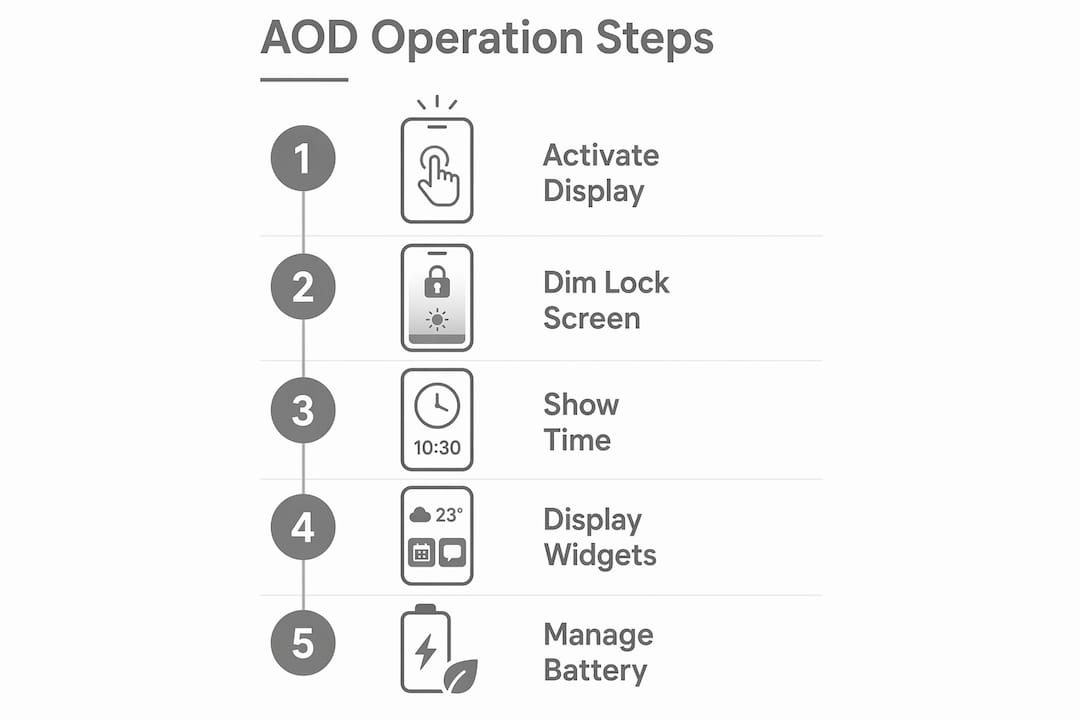
OLED displays have a further advantage. Each pixel produces its own light, so black areas of the screen consume no power at all. Around 95% of pixels stay physically off during idle AOD operation. The remaining lit pixels show your clock, widgets, and any active notifications. This combination of a near-static image and a very low refresh rate is what keeps the power draw so low.
Burn-in prevention you probably never noticed
One concern with OLED screens is burn-in, where a static image permanently damages pixels over time. Apple addresses this with a quiet software fix. iOS invisibly shifts screen elements by a few pixels every minute. You will never notice the movement, but it prevents any single pixel from staying lit in the same position for too long.
The iPhone also uses sensor data to decide when AOD is not needed. AOD disables automatically when the phone is face down, in your pocket, connected to CarPlay, during Sleep Focus, or when Low Power Mode is active. You do not need to manage any of this manually.
Pro Tip: If your battery is running low during a long day out, enabling Low Power Mode will switch off AOD instantly, giving you a quick and easy way to preserve charge without digging through display settings.
Situation | AOD behaviour |
Phone face down | Disabled automatically |
In pocket (proximity sensor) | Disabled automatically |
Sleep Focus active | Disabled automatically |
Low Power Mode active | Disabled automatically |
CarPlay connected | Disabled automatically |
Normal idle use | Active at 1Hz refresh |
What customisation options does iOS 26 offer for AOD?
iOS 26 gives you meaningful control over what appears on your always-on screen. The settings live at Settings > Display & Brightness > Always On Display. From there, you toggle the feature on or off and adjust two key options: whether your wallpaper shows, and whether notifications appear.
AOD settings let you show or hide your wallpaper, blur effects, and notifications, giving you control over both appearance and privacy. Hiding the wallpaper leaves a dark background with just the clock and widgets visible. This is the most battery-friendly configuration, and it also reveals less about you to anyone nearby.
The always-on screen also surfaces Live Activities. If you have a timer running, a food delivery on the way, or music playing, those updates appear directly on the AOD screen. AOD acts as a glanceable dashboard that replaces the notification LEDs older phones used to have. You get the same at-a-glance awareness without any interaction.
Toggle AOD on or off: Settings > Display & Brightness > Always On Display
Hide wallpaper: Reduces battery drain and keeps the screen minimal
Hide notifications: Protects sensitive information in public or shared spaces
Show notifications: Useful when you need to see message previews without picking up your phone
Live Activities: Appear automatically when active, no extra setting required
Pro Tip: If you use your iPhone in meetings or shared workspaces, hiding notifications on AOD is one of the quickest privacy wins available. You still see the time and any widgets, but no one else can read your messages from across the table.
How does AOD affect battery life and privacy?
Battery drain from AOD is real but modest. AOD consumes roughly 1–2% battery per hour, which adds up to around 10% over an eight-hour workday when the phone sits idle. That figure assumes a minimal setup. Adding a full wallpaper changes the picture noticeably.
A full wallpaper on AOD causes higher battery drain than a simple clock on a black background. Gadget repair experts highlight that heavy wallpaper usage is the primary cause of increased AOD battery drain. A minimalist setup, with wallpaper hidden and notifications limited, keeps the impact close to that 1–2% per hour figure.
Privacy is the other consideration. Showing notifications on your always-on screen means anyone near your phone can read incoming messages. Hiding notifications and wallpaper protects sensitive information while still offering the glanceable time and widget view. Here are the most practical steps to get the best balance:
Disable wallpaper in AOD settings to reduce battery drain immediately.
Hide notifications if you regularly leave your phone on a desk in shared spaces.
Enable Low Power Mode on long days to disable AOD automatically and extend battery life.
Use a dark or blurred Lock Screen wallpaper if you prefer to keep the visual but want less drain.
Check your Lock Screen widgets and remove any that update frequently, as active widgets draw more power on the always-on screen.
The iPhone’s automatic sensor management handles many of these situations without your input. When the phone detects it is face down or in a pocket, AOD switches off. This means you are not wasting battery when the screen is not visible to anyone.
Key takeaways
Always On Display on iPhone Pro models delivers glanceable information with minimal battery impact, provided you keep wallpaper hidden and notifications managed.
Point | Details |
Pro models only | AOD requires LTPO OLED hardware, available only on iPhone 14 Pro through 17 Pro Max. |
Minimal battery cost | AOD uses roughly 1–2% battery per hour, rising with wallpaper and active notifications. |
Automatic smart disabling | The iPhone turns AOD off in pockets, face down, during Sleep Focus, and in Low Power Mode. |
Customise for privacy | Hiding notifications and wallpaper in Settings protects sensitive information in shared spaces. |
Burn-in is managed | iOS shifts screen elements by a few pixels every minute to prevent OLED pixel damage. |
My honest view on Always On Display after using it daily
I have used AOD on iPhone Pro models since it launched, and my view has shifted considerably from my first impression. When I first turned it on, I left every setting at its default: full wallpaper, notifications visible, the works. My battery was noticeably worse by mid-afternoon. I blamed the feature entirely and nearly switched it off for good.
The real issue was the wallpaper. Once I disabled it and left just the clock and a couple of widgets, the battery difference became negligible. Most people who complain about AOD draining their battery are running it with a bright, colourful wallpaper. That is the actual culprit, not the feature itself.
The other misconception I hear regularly is about burn-in. People worry that leaving a static image on screen will damage their display. The pixel-shifting software Apple uses makes this a non-issue for normal use. If you are seeing display problems like dead pixels, AOD is almost certainly not the cause.
My practical advice: turn AOD on, hide the wallpaper, and use it for a week. You will likely find it genuinely useful for checking the time and Live Activities without touching your phone. If battery life still concerns you after that, the numbered tips in the battery section above will get you to a comfortable balance. Do not dismiss the feature based on default settings that were never designed to be the most efficient configuration.
— Joshua
When your iPhone display needs professional attention

AOD is a well-engineered feature, but display problems do sometimes appear on iPhone Pro models regardless of how you use them. If your screen shows unusual behaviour, such as flickering, unresponsive touch, or discolouration, those are hardware issues that settings changes will not fix. Rapidrepairsldn specialises in iPhone screen and battery repairs for exactly these situations. The team at Rapidrepairsldn works on iPhone Pro models regularly and can diagnose display faults quickly, whether the issue is related to the OLED panel, the battery, or something deeper on the board. If your phone needs attention, Rapidrepairsldn is a trusted option in London.
FAQ
What is Always On Display on iPhone?
Always On Display is a feature that keeps the iPhone lock screen dimly lit to show the time, widgets, and notifications without requiring you to wake the device. It is available exclusively on iPhone Pro models from the iPhone 14 Pro onwards.
Does Always On Display drain the battery significantly?
AOD uses roughly 1–2% battery per hour under minimal settings. Battery drain increases noticeably when a full wallpaper is enabled, so hiding the wallpaper is the most effective way to reduce the impact.
Can I turn off Always On Display on my iPhone?
Yes. Go to Settings > Display & Brightness > Always On Display and toggle the feature off. You can also disable it temporarily by enabling Low Power Mode, which switches AOD off automatically.
Why does my iPhone not have Always On Display?
Non-Pro iPhone models lack the LTPO OLED display hardware required for AOD. The feature cannot be added through a software update on standard or Plus models.
Does Always On Display cause screen burn-in?
Burn-in risk is managed by iOS software that shifts screen elements by a few pixels every minute. This movement is imperceptible to you but prevents any single pixel from staying lit in a fixed position long enough to cause damage.
Recommended
Comments