
iPhone earpiece volume low: fixes that actually work
- Jul 27
- 8 min read

Raise the in-call volume while you’re on a live call, switch off Bluetooth, and clear the earpiece mesh. Those three steps resolve the majority of low earpiece volume complaints on iPhone. Press the Volume Up button on the side of your iPhone during a call — not before, not after — because call volume is independent of media volume and won’t budge unless a call is active. If speakerphone sounds fine but the top earpiece stays quiet after you’ve cleaned it and run through the software checks below, that points to a hardware fault and you’ll need a repair visit.
Table of Contents
How to fix iPhone earpiece volume low: step-by-step
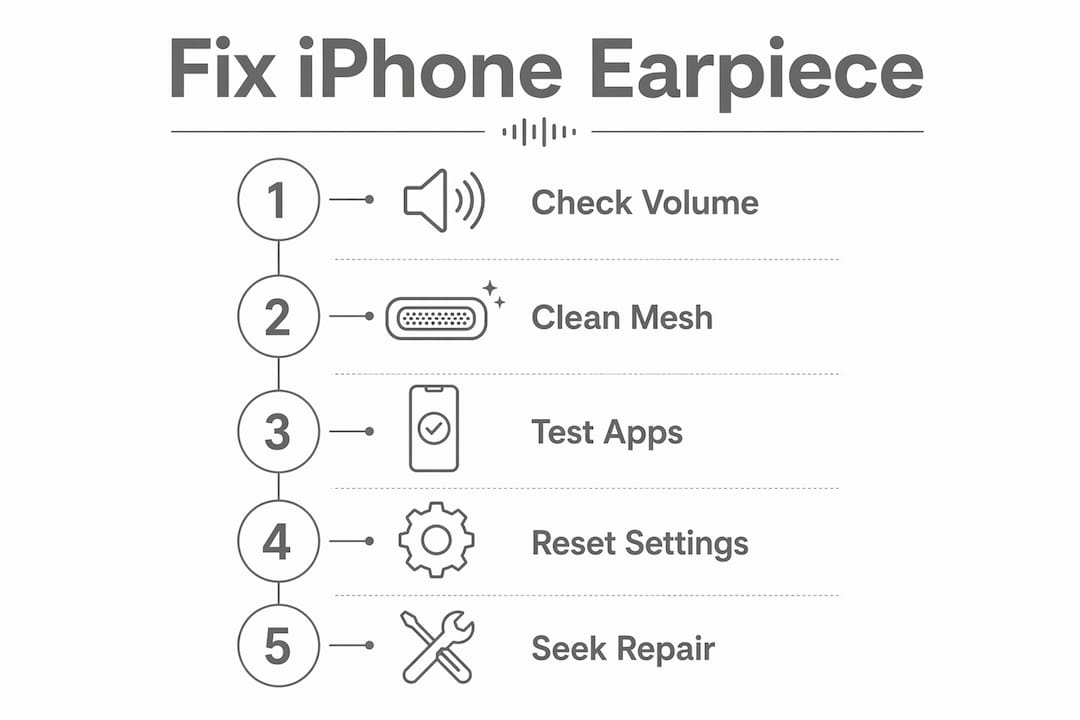
Work through these in order. Most people find the fix before they reach step five.
Raise in-call volume during a live call. Press the Volume Up button on the left side of your iPhone while a call is active. The on-screen volume bar should rise. If it doesn’t move, or moves but the earpiece stays quiet, continue to the next step.
Check your call audio output. During a call, tap the audio icon on screen. If it shows a Bluetooth device or speaker, tap iPhone to route audio back to the earpiece. Audio routing can silently redirect calls to paired Bluetooth devices without any obvious notification.
Turn off Bluetooth from Control Centre. Swipe down to open Control Centre and tap the Bluetooth icon to disable it. Make a test call. This forces audio back to the iPhone’s own earpiece immediately.
Remove your case and screen protector. Some cases sit slightly over the earpiece slot, and screen protectors without a proper cutout can muffle sound noticeably. Remove both and test a call before cleaning anything.
Restart your iPhone and check for iOS updates. A soft reboot clears transient audio glitches that affect routing. After restarting, go to Settings > General > Software Update. Some iOS releases have introduced audio bugs that Apple later patched in point updates.
Test with other audio methods. Play a Voice Memo, listen to voicemail, try speakerphone, and plug in wired headphones. This tells you quickly whether the fault is isolated to the earpiece or affects the whole audio system.
Pro Tip: If the issue only appears in a third-party VoIP app such as WhatsApp or Teams, check the app’s audio settings and update the app before assuming a hardware fault. VoIP apps manage their own audio routing independently of iOS.
How to clean the iPhone earpiece safely
Dust, lint, and debris in the earpiece mesh are one of the most common causes of muffled or very low call audio. The mesh sits flush against your face during calls, which means it collects skin oils and pocket lint steadily over time. A partial blockage can cut perceived volume significantly without any obvious visible damage.
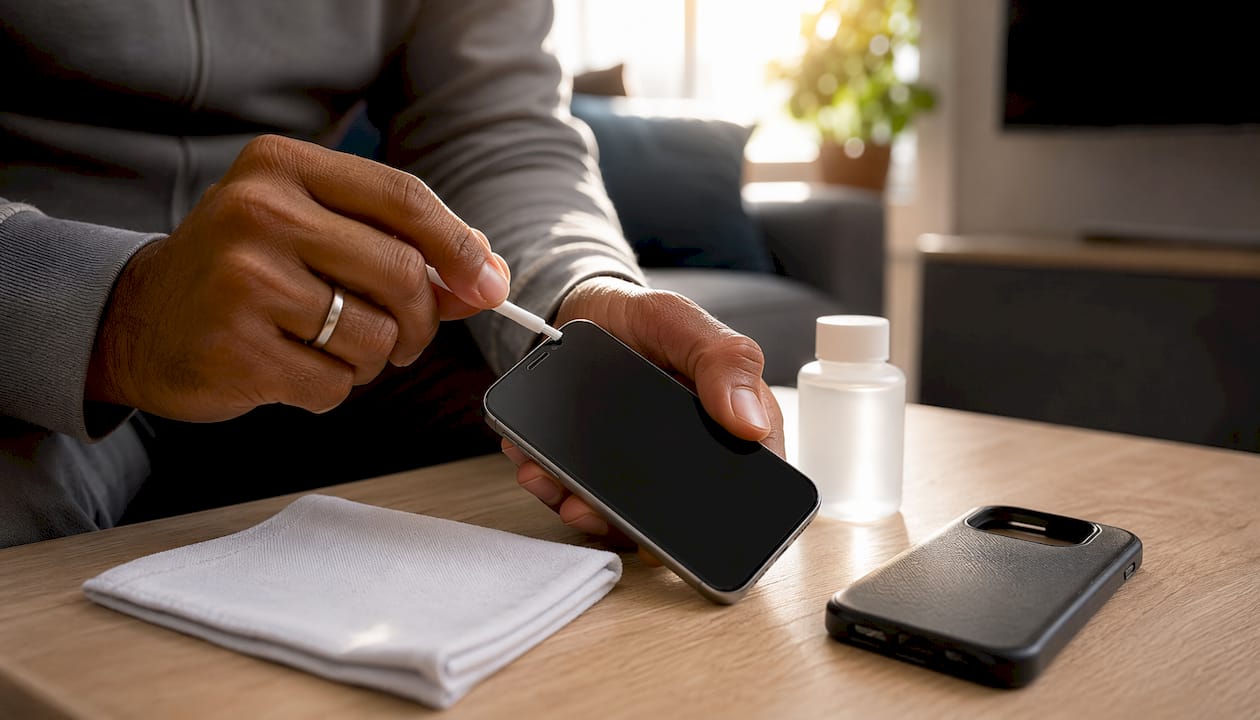
Power off your iPhone before you start. Remove the case and screen protector so you have a clear view of the earpiece slot at the top of the screen.
Use a soft, dry brush — a clean paintbrush or a new interdental brush works well — and sweep gently across the mesh in one direction. Specialist hearing clinics recommend soft brushes for delicate mesh cleaning on hearing aids, and the technique translates directly to iPhone earpiece grilles. If compressed air is all you have, hold the can upright and use very short, low-pressure bursts from a few centimetres away. Never aim a full blast directly into the seam.
What not to do: avoid metal picks, SIM-eject tools, or anything rigid pushed into the mesh. High-pressure canned air aimed at the seam can force debris deeper or dislodge internal components. Never apply liquid directly to the earpiece area.
Pro Tip: Removing the case and screen protector before cleaning often reveals that the protector was the culprit. Test a call immediately after removal — you may not need to clean at all.
How to tell whether the issue is software, settings, or hardware
Run through this short diagnostic sequence before booking any repair.
Speakerphone test: if speakerphone sounds clear and loud, the iPhone’s audio hardware is working. The fault is likely isolated to the earpiece module or its routing.
Wired headphone test: plug in a pair of wired headphones and make a call. Normal volume confirms the earpiece is the specific problem, not the whole audio chain.
Voice Memo playback: record a short clip and play it back. If playback through the earpiece is muffled but speakerphone playback is clear, that confirms the earpiece path.
Voicemail playback: listen to a voicemail through the earpiece. Same logic applies.
Check Call Audio Routing: go to Settings > Accessibility > Touch > Call Audio Routing and set it to Automatic. If it was set to Speaker or Bluetooth, calls would never use the earpiece.
Check Phone Noise Cancellation: on iPhone 12 and earlier, go to Settings > Accessibility > Audio/Visual and toggle Phone Noise Cancellation off. Some users report this significantly improves perceived earpiece volume.
Reset Network Settings: go to Settings > General > Transfer or Reset iPhone > Reset > Reset Network Settings. This resolves obscure audio routing problems without erasing your photos, apps, or data. You will need to rejoin Wi-Fi networks afterwards.
If speakerphone, wired headphones, and Bluetooth audio all sound normal but the earpiece remains muffled after cleaning and the checks above, the fault is almost certainly hardware.
When should you get a repair, and what does it cost in the UK?
Stop troubleshooting and book a repair when you see any of these signs:
The earpiece is silent or severely muffled after cleaning and all software checks
Visible physical damage around the top of the screen
The liquid contact indicator (a small red dot visible in the SIM tray slot) has been triggered
The fault appeared immediately after a drop or liquid exposure
Speakerphone works but the earpiece produces nothing, even at maximum volume
In the UK, you have two main routes. Apple’s authorised service via the Apple Store or Apple Support preserves your warranty and uses genuine parts, but appointments can take several days and out-of-warranty repairs carry a fixed Apple pricing structure. A trusted independent shop such as Rapidrepairsldn offers same-day or 24–72 hour turnaround for common earpiece swaps, which suits most people who need their phone back quickly. The repair cost varies by iPhone model — newer models with more complex assemblies typically cost more than older ones.
If the fault only appears in the earpiece and speakerphone is completely fine, a receiver module replacement is one of the most straightforward fixes we carry out. It’s a fast job at a specialist shop, and in most cases the phone is ready the same day.
Pro Tip: At Rapidrepairsldn, Joshua and the team diagnose earpiece faults as part of the standard drop-off check. If the fault turns out to be a larger board-level issue rather than the receiver module, you’ll be told before any repair work begins.
How to prepare your iPhone before a repair visit
A little preparation saves time at the counter and protects your data.
Back up your iPhone via iCloud (Settings > [your name] > iCloud > iCloud Backup) or to a Mac/PC using Finder. Do this before you leave home.
Note your exact symptoms: when the problem started, whether it’s constant or intermittent, and which apps or call types trigger it.
Record a short video of the fault if it’s intermittent. A 30-second clip demonstrating the muffled earpiece gives the technician a time-stamped symptom log to work from.
Remove your case and screen protector before you arrive so the technician can inspect the earpiece slot immediately.
Bring proof of purchase if the device is still under warranty or AppleCare+.
Sign out of Apple ID only if the shop specifically requests it for a repair that requires a full restore.
Symptom notes genuinely speed up diagnosis. A technician who knows the fault is intermittent and only on carrier calls, not VoIP, can skip several tests and get to the likely cause faster.
Key takeaways
Most iPhone earpiece volume issues are fixed by three quick checks: raise in-call volume during a live call, disconnect Bluetooth, and clear the earpiece mesh of debris.
Point | Details |
Raise volume during a call | Press Volume Up only while a call is active — call volume is separate from media volume. |
Disconnect Bluetooth first | Audio routing silently redirects calls to paired devices; turning Bluetooth off forces audio back to the earpiece. |
Clean before assuming hardware | Dust and lint in the mesh are a leading cause of muffled earpiece sound; a soft brush often restores full volume. |
Run the diagnostic sequence | Test speakerphone, wired headphones, and Voice Memo to isolate whether the fault is earpiece-specific or system-wide. |
Rapidrepairsldn for hardware faults | If the earpiece stays quiet after all software and cleaning steps, Rapidrepairsldn offers same-day earpiece repair in London. |
What the repair bench actually tells you about earpiece faults
The conventional advice online tends to stop at “try a factory reset.” From a repair perspective, that’s rarely where the answer lies.
The three causes that come up most often in practice are: a blocked mesh (solved by cleaning), audio misrouted to a Bluetooth device the user forgot was paired, and minor liquid ingress that corrodes the earpiece connector over weeks rather than all at once. That last one is the tricky one. The phone works fine on speaker, the user assumes it’s a software bug, and they spend days updating and resetting before realising the earpiece module itself has been slowly failing since the phone got wet three months ago.
The pitfall worth avoiding is using anything metal to prod the mesh. A SIM tool or a pin can puncture the mesh fabric and push debris into the receiver cavity, turning a cleaning job into a module replacement. Aggressive compressed air does the same. The soft-brush approach takes longer but doesn’t create new problems.
Factory resets are a last resort, not a first step. If the diagnostic sequence in this article shows that speakerphone and headphones work normally, no amount of resetting will fix a failing earpiece module. Save the reset for cases where the whole audio system is behaving oddly.
Rapidrepairsldn: earpiece repairs done the same day in London
When software fixes and cleaning haven’t resolved the problem, the earpiece module itself needs attention — and that’s where Rapidrepairsldn comes in. The team handles iPhone earpiece and receiver replacements as a routine repair, with same-day turnaround available for most models. Drop-off diagnostics are straightforward: bring your phone in, describe the symptoms, and the technician will confirm whether it’s the receiver module, a connector issue, or something deeper before any work begins.

Rapidrepairsldn also covers liquid damage triage for cases where water ingress is suspected, and the diagnostic check will flag any secondary faults at the same time. If you’re unsure whether your issue is hardware or software, the drop-off check is the fastest way to get a clear answer. Book your repair or bring your iPhone into the London shop today.
Useful sources for further reading
Apple Support — sound and audio routing guidance: covers in-call volume, Call Audio Routing settings, and when to contact Apple for service.
iOS update and audio bug fixes: MacObserver’s guide to earpiece issues on iOS 18 and 18.3, including known software-related audio faults.
Low call volume troubleshooting steps: Lifewire’s walkthrough covering Noise Cancellation, Bluetooth routing, and software fixes.
Safe cleaning technique for delicate speaker meshes: Pro Ear Clinic’s guide to brush-based cleaning of fine mesh grilles — the same principles apply to iPhone earpiece slots.
Rapidrepairsldn: common iPhone repairs and turnaround times: an overview of frequent iPhone faults handled at the London shop, including audio and earpiece issues.
Recommended
Comments